> For the complete documentation index, see [llms.txt](https://penida.gitbook.io/cowlendar-help/llms.txt). Markdown versions of documentation pages are available by appending `.md` to page URLs; this page is available as [Markdown](https://penida.gitbook.io/cowlendar-help/how-to.../how-to-configure-availability-in-cowlendar-services/how-to-set-specific-dates-with-different-time-slots.md).
# How to set Specific Dates with Different Time Slots
This configuration allows you to offer **different booking capacities per time slot and per specific date**.
It’s the most flexible availability setup in Cowlendar and is ideal when:
* Capacity changes depending on the day
* Weekdays and weekends require different limits
* A single day needs different capacities for morning vs afternoon sessions
***
### **🧩 When to Use This Setup**
Use this configuration if you need to:
* Set **different maximum people per slot** depending on the date
* Offer higher capacity on weekends or special events
* Customize capacity by **time ranges within the same day**
* Fully control availability from the Availability section
***
### **📲 Step-by-Step: Enable Slot-Level Capacity Control**
#### **Step 1: Disable Booking Limits at the Service Level**
1. From your **Shopify admin**, go to **Apps**.
2. Open **Cowlendar**.
3. Click on **My Services**.
4. Find the service you want to edit and click **Edit**.
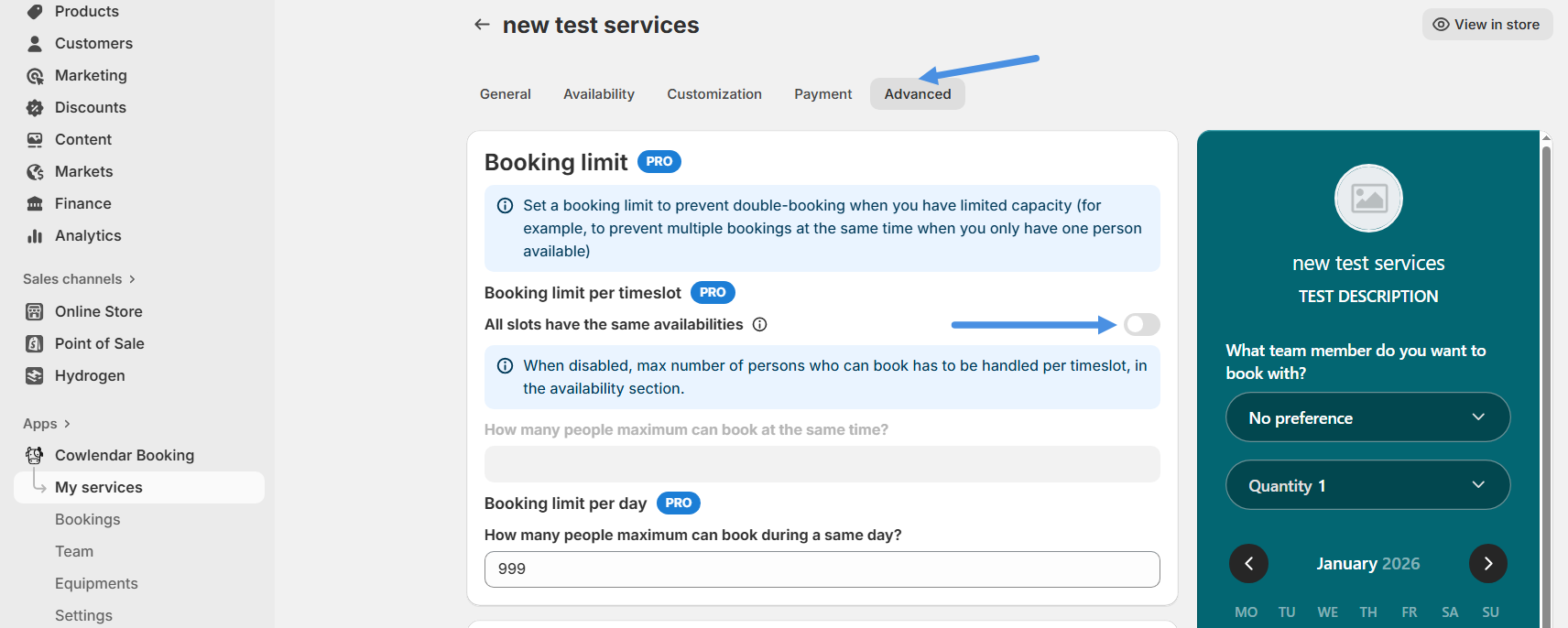
5. Go to the **Advanced** tab.
6. In the **Booking limits** section:
* Disable **Booking limit per timeslot**
➡️ This is required so all booking limits are managed **directly from Availability**, not globally.
***
#### **Step 2: Go to Availability Settings**
7. Go to the **Availability** tab.
8. Make sure **Availability mode** is set to **Availability per service**.
9. Just below **Availability mode**, locate the **Availability** section.
***
#### **🎯 Maximum People Per Slot (Key Setting)**
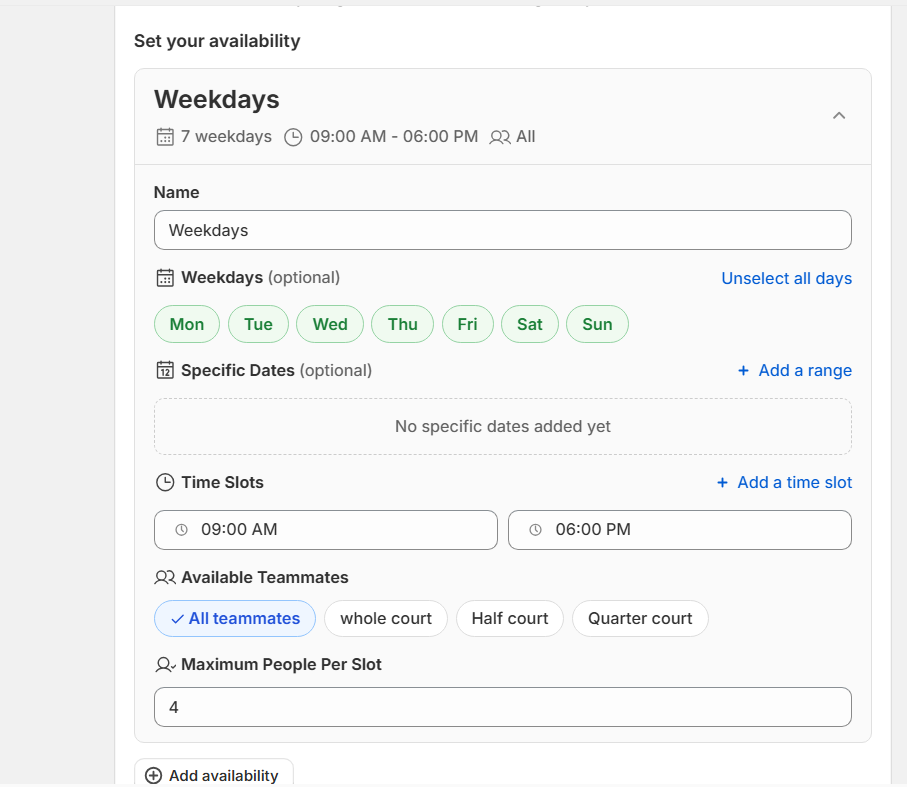
For each availability block you create, you’ll now see a new option at the bottom:
#### **Maximum People Per Slot**
This allows you to define **how many people can book each time slot for that specific availability only**.
Each availability can have a **different capacity**.
***
### **🧪 Example 1: Different Capacity for Weekdays vs Weekends**
#### **Scenario**
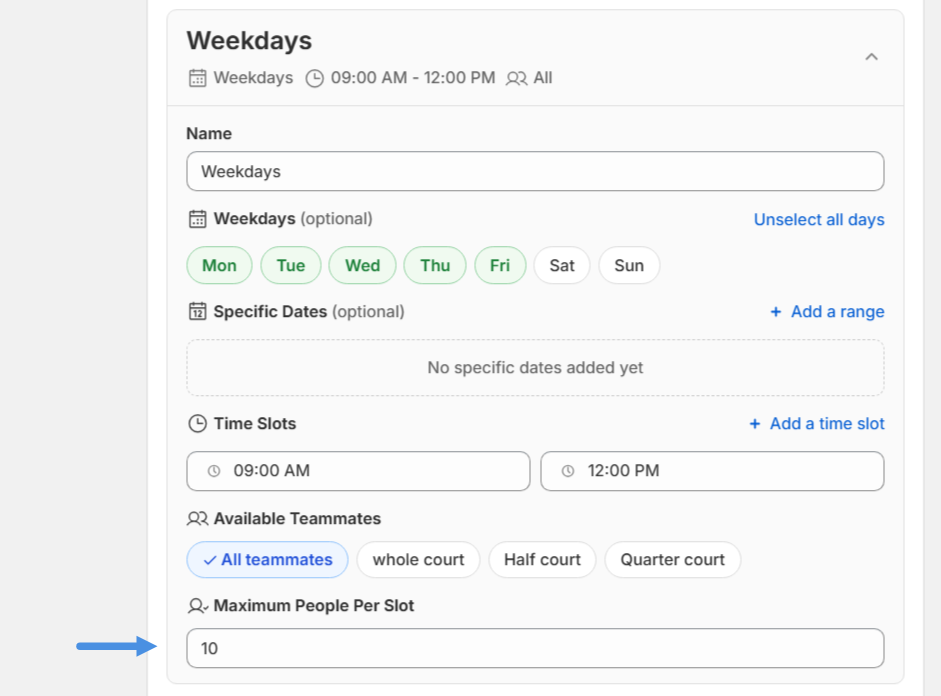
* Weekdays → max **10 people per slot**
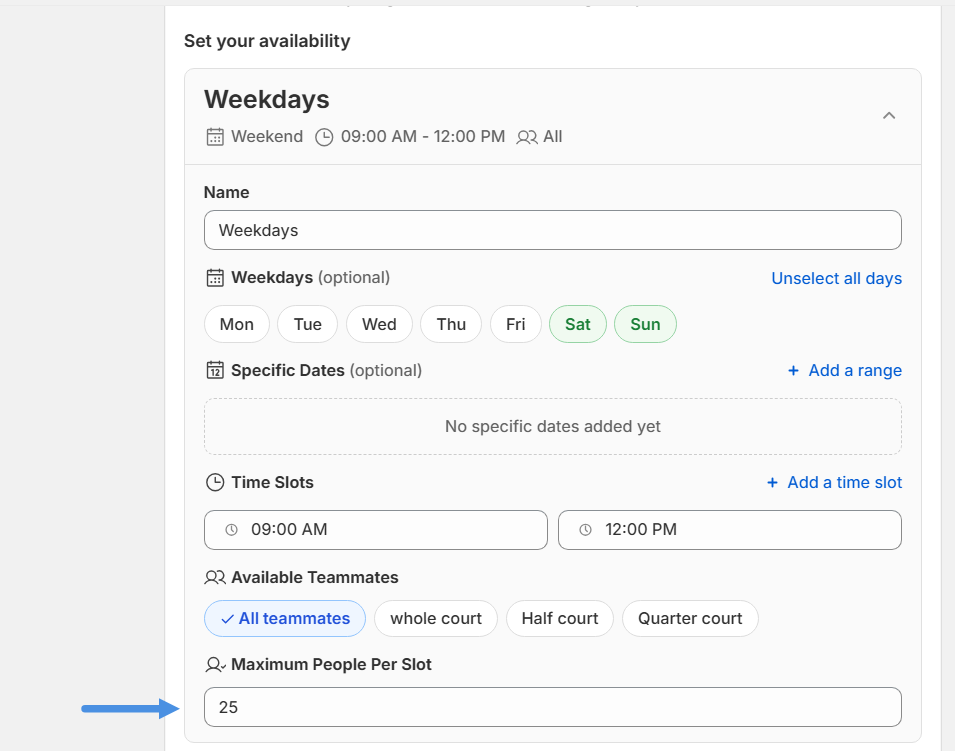
* Weekends → max **25 people per slot**
#### **Configuration**
**Availability 1: Weekdays**
* Enable **Weekdays**
* Select **Monday to Friday**
* Deselect **Saturday & Sunday**
* Set your time slot(s)
* Set **Maximum People Per Slot = 10**
**Availability 2: Weekend**
* Deselect all weekdays
* Select **Saturday & Sunday**
* Set your time slot(s)
* Set **Maximum People Per Slot = 25**
➡️ Result:\
Each booking slot will respect the capacity defined for that specific availability.
***
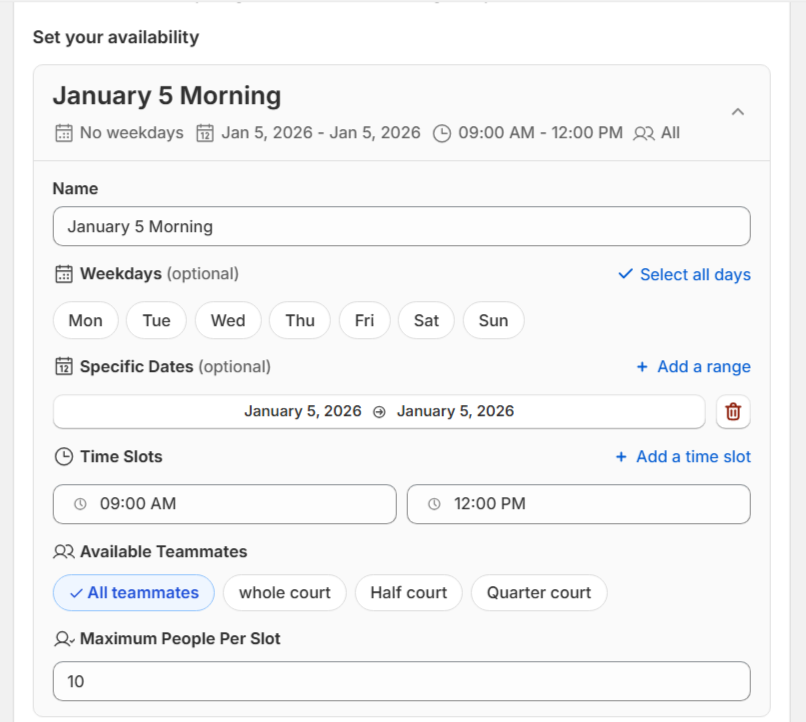
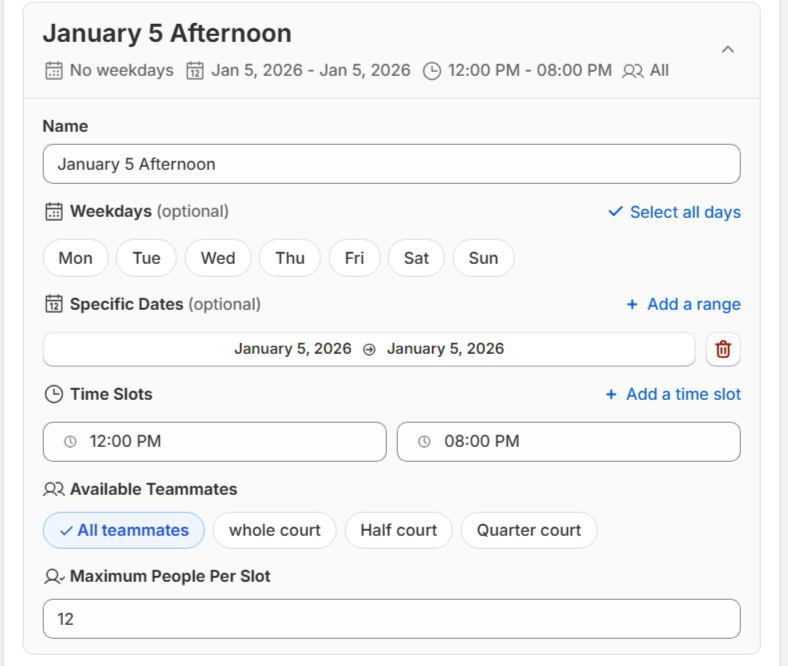
### **🧪 Example 2: Different Capacities by Time Range on the Same Day**
This setup allows **multiple capacities within a single date**, based on time.
#### **Scenario**
On **January 5th**:
* **9:00 AM – 12:00 PM** → max **10 people per slot**
* **1:00 PM – 8:00 PM** → max **12 people per slot**
#### **Configuration**
**Availability 1: Morning Slots**
* Use **Specific dates**
* Select **January 5th**
* Set time slot: **9:00 AM – 12:00 PM**
* Set **Maximum People Per Slot = 10**
**Availability 2: Afternoon Slots**
* Use **Specific dates**
* Select **January 5th**
* Set time slot: **1:00 PM – 8:00 PM**
* Set **Maximum People Per Slot = 12**
{% hint style="warning" %}
⚠️ **Important Rule**
* The **same date + time range cannot exist in more than one availability**
* Do **not** select January 5th in any other availability
* This avoids conflicts and ensures the correct capacity is applied
{% endhint %}
***
### **⚠️ Important Rules to Avoid Errors**
* Each **date + time slot combination must be unique**
* A specific date should not overlap across multiple availabilities
* Capacity is determined **only by the availability that matches the date and time**
* If overlaps exist, the system may ignore or miscalculate availability
***
### **✅ Final Result**
With this configuration:
* Each date can have its **own capacity**
* Each time range can have **different limits**
* You gain full control over high-demand or special-event scheduling
* Customers always see accurate availability and capacity
***
{% hint style="info" %}
💡 This setup is perfect for workshops, conferences, events, seasonal programs, or any service where demand varies by day or time.
{% endhint %}
.png?alt=media&token=a0acf16f-e8f1-4b56-af0e-48bbd1feaca9)