> For the complete documentation index, see [llms.txt](https://penida.gitbook.io/cowlendar-help/llms.txt). Markdown versions of documentation pages are available by appending `.md` to page URLs; this page is available as [Markdown](https://penida.gitbook.io/cowlendar-help/how-to.../how-to-manage-notifications-in-cowlendar/how-to-activate-sms-notifications-in-cowlendar.md).
# How to activate SMS Notifications in Cowlendar
{% hint style="warning" %}
⚠️ **Ultra Plan Required**\
WhatsApp Notifications are available exclusively on the **Ultra plan and purchase Credits**.
{% endhint %}
Cowlendar’s **SMS Notifications** feature allows you to automatically send booking updates directly to your customers via text message. This includes booking confirmations, reschedules, cancellations, and reminders.
By using **Cowlendar SMS notifications**, you can reach customers instantly on their mobile phones, helping reduce no-shows and ensuring important booking notifications are delivered even when email or WhatsApp isn’t checked.
***
### What Are SMS Notifications in Cowlendar?
SMS Notifications let you send automated text messages when:
* A booking is confirmed
* A booking is rescheduled
* A booking is canceled
* A reminder is sent before the appointment
These messages are delivered as standard SMS directly to your customer’s phone number.
This is ideal for businesses that need fast, reliable communication, especially for last-minute bookings or reminders.
***
### How to Enable SMS Notifications for a Service
SMS notifications are configured **per service**, giving you full flexibility to decide which services use SMS and how messages are sent.
#### Step-by-Step: Enable SMS Notifications
1. From your Shopify admin, go to **Apps**.
2. Open **Cowlendar**.
3. Navigate to **My Services**.
4. Find the service you want to configure and click **Edit**.
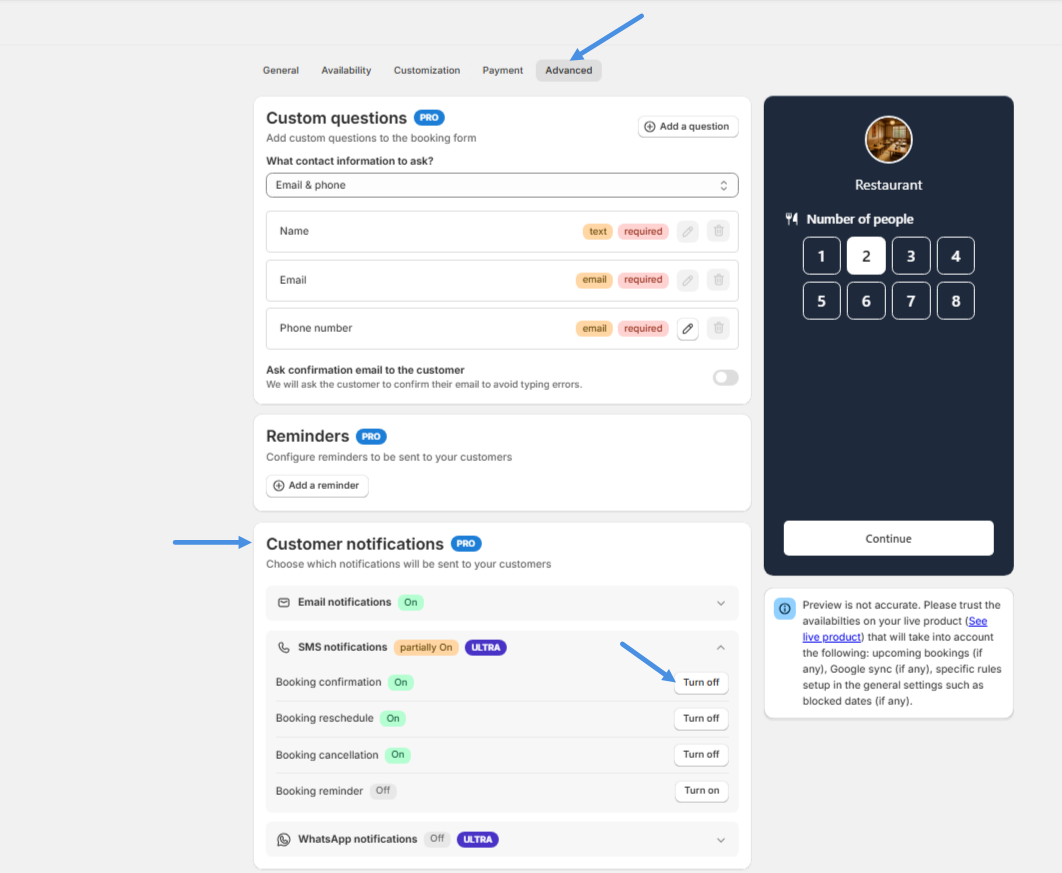
1. Go to the **Advanced** tab.
2. Scroll down to the **Notifications** section.
3. Toggle ON SMS for any of the following events:
* Booking confirmation
* Reschedule notification
* Cancellation notification
* Booking reminders
Once enabled, this service will start sending SMS messages for the selected events.
You can repeat this process for each service individually.
***
### Important: Phone Number Is Required
After enabling SMS notifications, you must ensure your service collects a phone number from customers.
To configure this:
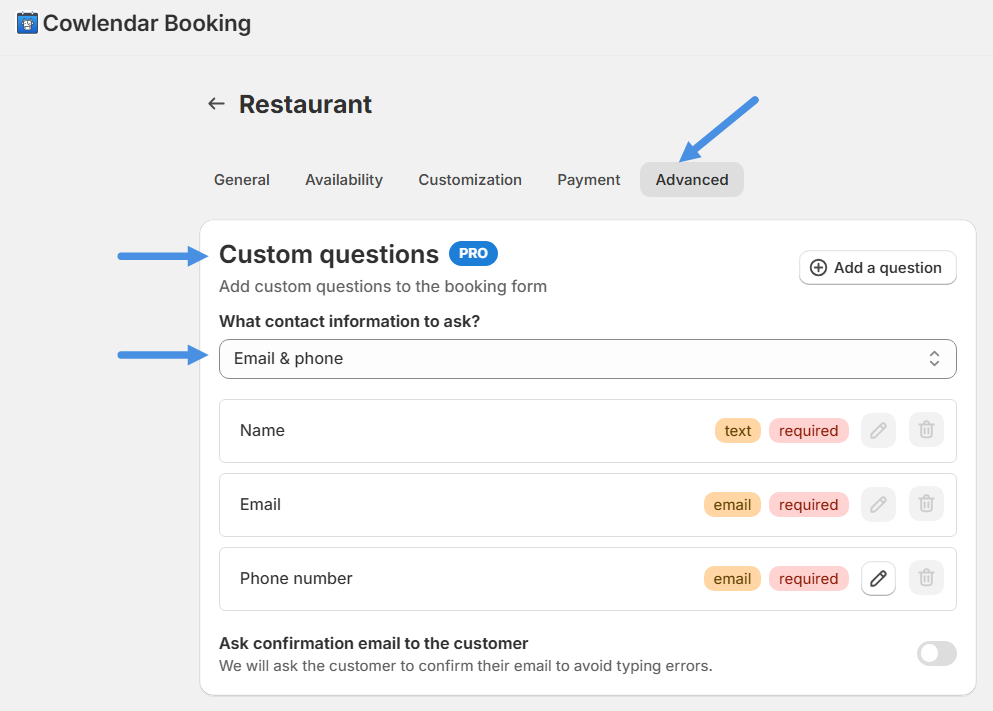
1. Stay inside your service editor.
2. Go to **Advanced**.
3. Scroll to **Custom questions**.
4. Find **What contact information to ask?**
5. Select either:
* **Phone**
* **Email & Phone**
SMS notifications cannot be sent without a phone number.
***
### Customizing SMS Message Content
Cowlendar allows you to customize SMS message content per service.
For each service, you can edit templates for:
* Booking confirmations
* Reschedules
* Cancellations
* Reminders
This allows you to tailor messages to your brand and service type, such as:
* Adding appointment instructions
* Including location details
* Personalizing confirmations
{% hint style="info" %}
**SMS Length Note**\
Every **160 characters = 1 SMS**.\
Longer messages will be split into multiple SMS segments, which increases credit usage.
{% endhint %}
### SMS Credits and Pricing
SMS uses the **same credit balance** as WhatsApp notifications.
However, **SMS and WhatsApp have different pricing tables**.
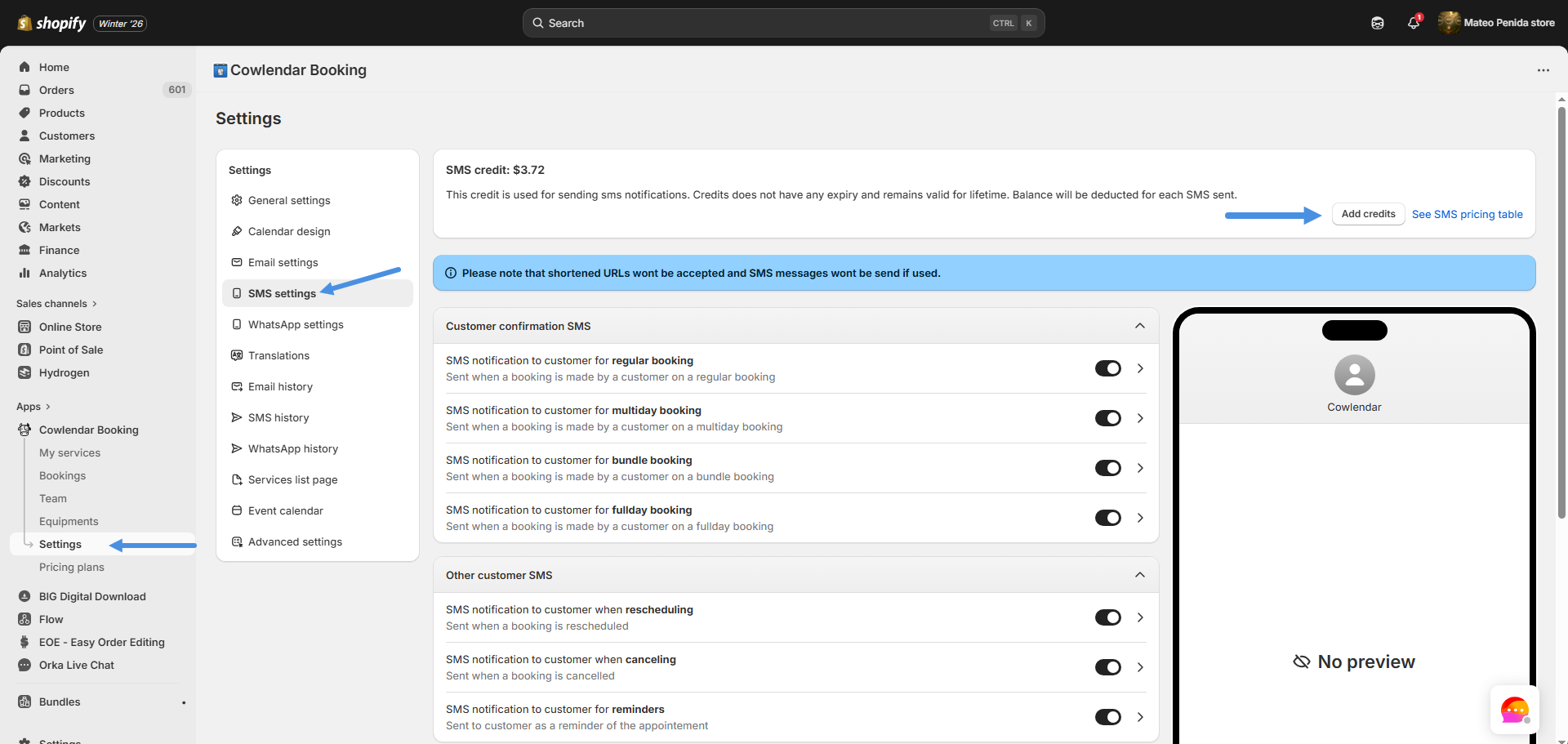
To manage SMS pricing:
1. Go to **Settings** in Cowlendar.
2. Open **SMS Settings**.
3. Review the SMS pricing table.
4. Purchase credits as needed.
Your existing WhatsApp credits can also be used for SMS, but each channel consumes credits according to its own rate.
We recommend checking usage regularly if you enable SMS reminders or use SMS across multiple services.
***
### Best Practices for SMS Booking Notifications
To optimize your Cowlendar SMS notifications:
* Keep messages concise to avoid multiple SMS segments.
* Enable SMS only for critical services if you want to control costs.
* Use reminders to reduce no-shows.
* Always collect phone numbers when SMS is active.
* Monitor credit consumption in Settings.
***
### Final Thoughts
SMS Notifications provide a direct and reliable communication channel for your bookings.
With **Cowlendar SMS notifications**, you can:
* Send instant SMS booking confirmations
* Deliver Shopify SMS booking reminders
* Notify customers of changes in real time
* Improve attendance and customer experience
Combined with WhatsApp, SMS gives you a powerful multi-channel notification system to keep your customers informed and engaged.
.png?alt=media&token=a0acf16f-e8f1-4b56-af0e-48bbd1feaca9)