> For the complete documentation index, see [llms.txt](https://penida.gitbook.io/cowlendar-help/llms.txt). Markdown versions of documentation pages are available by appending `.md` to page URLs; this page is available as [Markdown](https://penida.gitbook.io/cowlendar-help/how-to.../how-to-set-up-recurring-service-subscription-in-cowlendar/how-your-customers-manage-and-renew-subscriptions.md).
# How Your Customers Manage & Renew Subscriptions
{% hint style="danger" %}
**The page** [**bookings.cowlendar.com**](https://bookings.cowlendar.com) **and its branding are not customizable, cannot be hidden, and will always remain the same for all merchants using Cowlendar.**
{% endhint %}
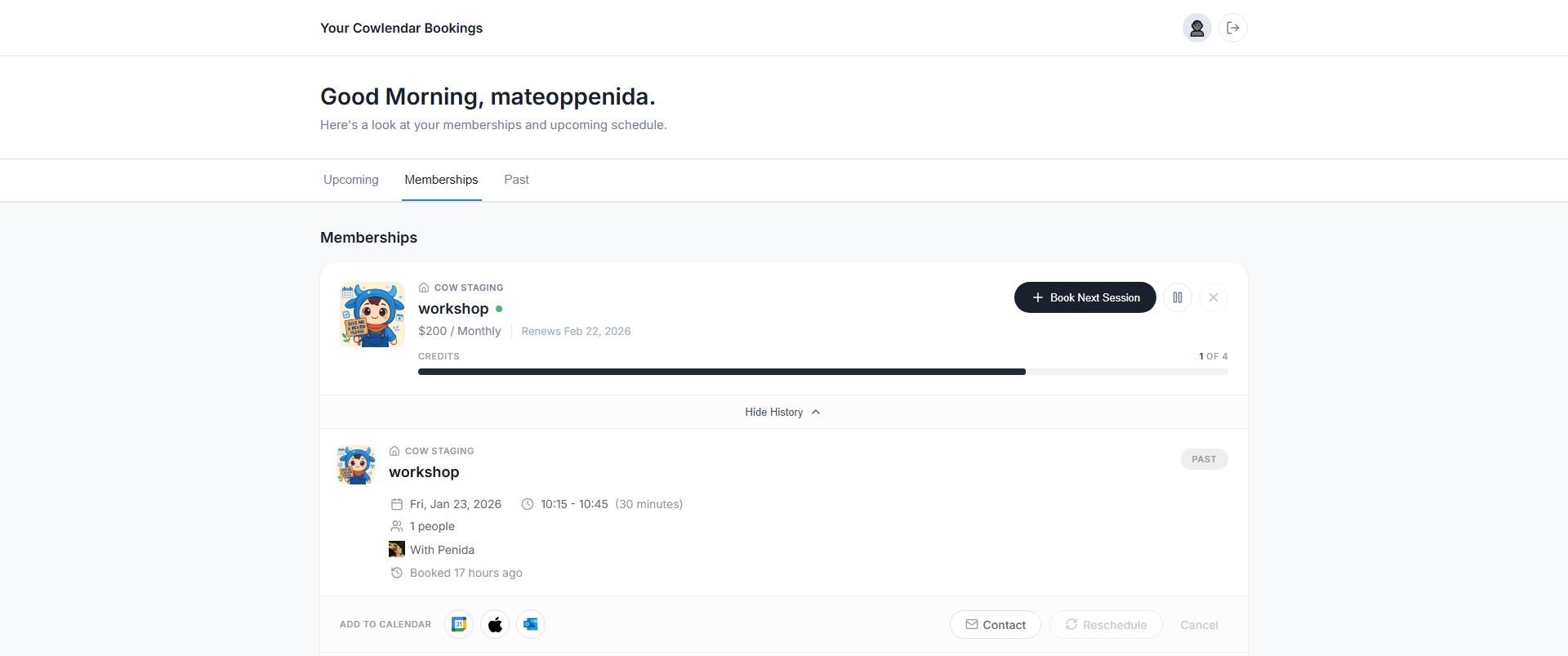
Once a customer purchases a subscription in Cowlendar, they get access to a dedicated customer portal where they can manage their bookings and subscription independently.
***
### Accessing the Customer Portal
Customers can manage their subscription using the following link:
👉 [bookings.cowlendar.com](https://bookings.cowlendar.com)
This link is automatically included in the subscription confirmation email sent after the subscription becomes active.
***
### Emails the Customer Will Receive
After purchasing a subscription, customers will receive two emails:
1. A booking confirmation email confirming the initial booking.
2. A subscription active confirmation email that includes the link to manage the subscription and future bookings.
***
### Logging Into the Customer Portal
Customers can securely access the portal using one of the following methods:
* Sign in with their Google account.
* Create and use a password linked to their email address.
***
### What Customers Can Do from the Portal
From this portal, customers can:
* View all upcoming and past bookings, with a date filter for easier navigation.
* Create new bookings using their available subscription credits.
* See how many credits remain in the current billing period.
* Reschedule or cancel confirmed bookings, according to the service rules.
* Manage their subscription status, including:
* Pause the subscription if this option is enabled.
* Resume a paused subscription.
* Cancel the subscription if cancellation is allowed.
* Track billing details such as:
* Current subscription status.
* Billing cycle duration.
* Next scheduled charge date.
***
This self service portal allows customers to fully manage their subscription and bookings without needing to contact the merchant, creating a smooth and transparent experience for everyone involved.
***
### Managing Bookings from Shopify (Order Status Page)
{% content-ref url="/pages/PlFAGtGnaI3GenWMaDDO" %}
[How customers can manage their bookings from Shopify](/cowlendar-help/how-to.../how-customers-can-manage-their-bookings-from-shopify.md)
{% endcontent-ref %}
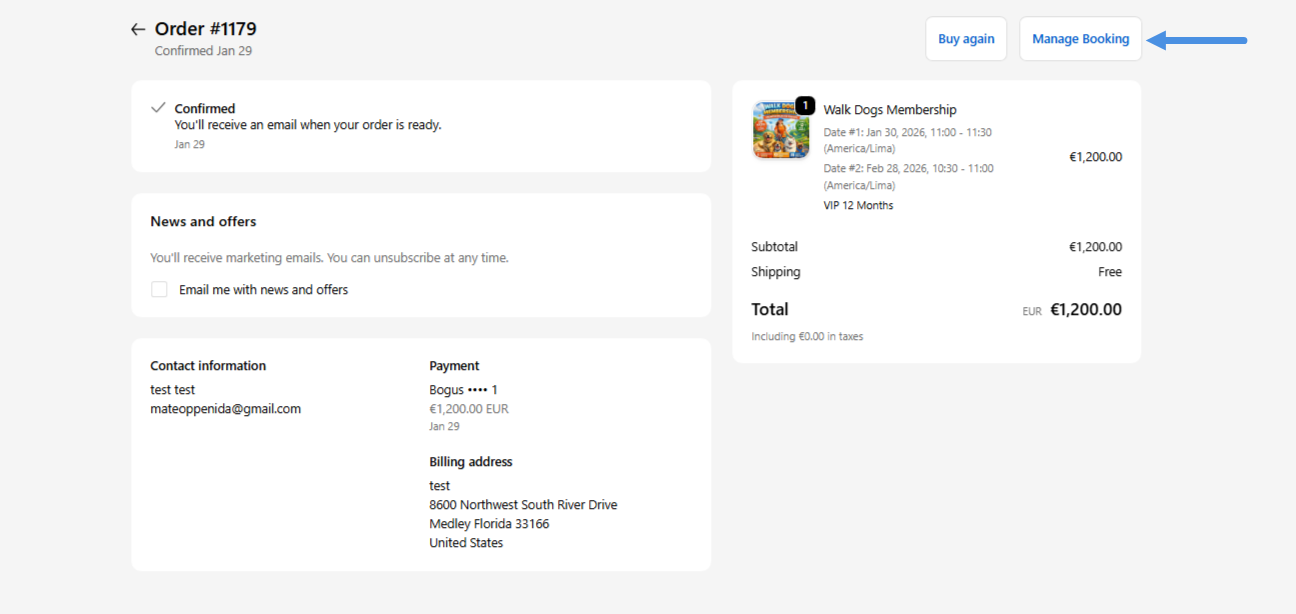
When a customer purchases a subscription, Shopify creates an order associated with that subscription.
From that point on, customers can:
1. Log into their Shopify customer account.
2. Open the order linked to their subscription.
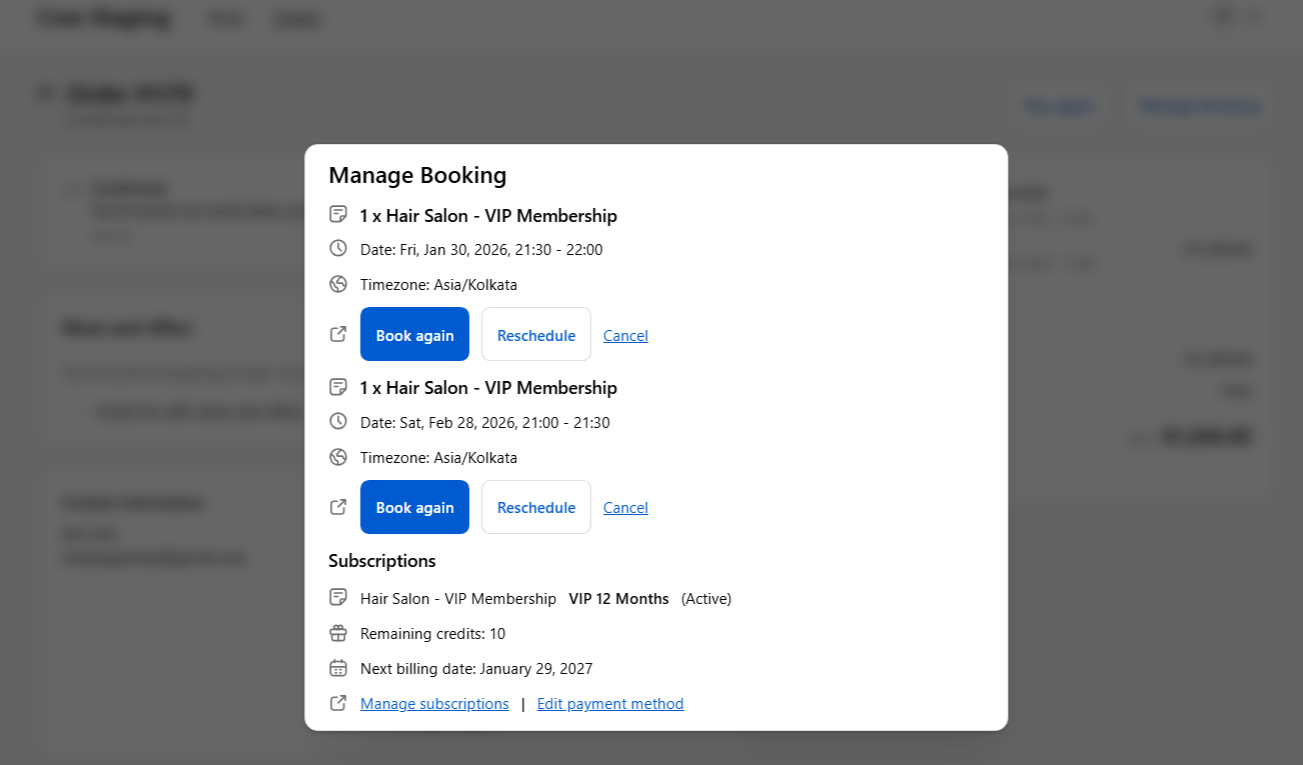
3. Click the **Manage booking** button.
From here, they can:
#### Reschedule or Cancel Bookings
Customers can:
* Reschedule confirmed bookings
* Cancel upcoming bookings (if cancellation rules allow)
Changes are instantly synced with Cowlendar.
***
#### Update Payment Method for the Subscription
Inside the same flow, customers can:
* Edit the payment method used for their subscription
* Replace expired cards
* Switch to a different card
This is handled securely through Shopify.
***
#### Access the Subscription Portal
The Order Status page also includes a link that redirects customers to the [Cowlendar subscription portal](https://bookings.cowlendar.com).
This allows them to manage their subscription in more detail.
### Why This Matters
This integration gives customers multiple entry points to manage their subscription:
* Shopify customer account
* Shopify order page
* Cowlendar subscription portal
Which means:
* Fewer support tickets
* Faster customer actions
* Clear visibility of bookings and payments
* Better subscription retention
Customers stay in control, while merchants keep operations centralized inside Cowlendar and Shopify.